Credit
Credit Card
The most common route. Keep your expiry and CVV handy and enable bank verification.
Mobile App and Mobile Payment
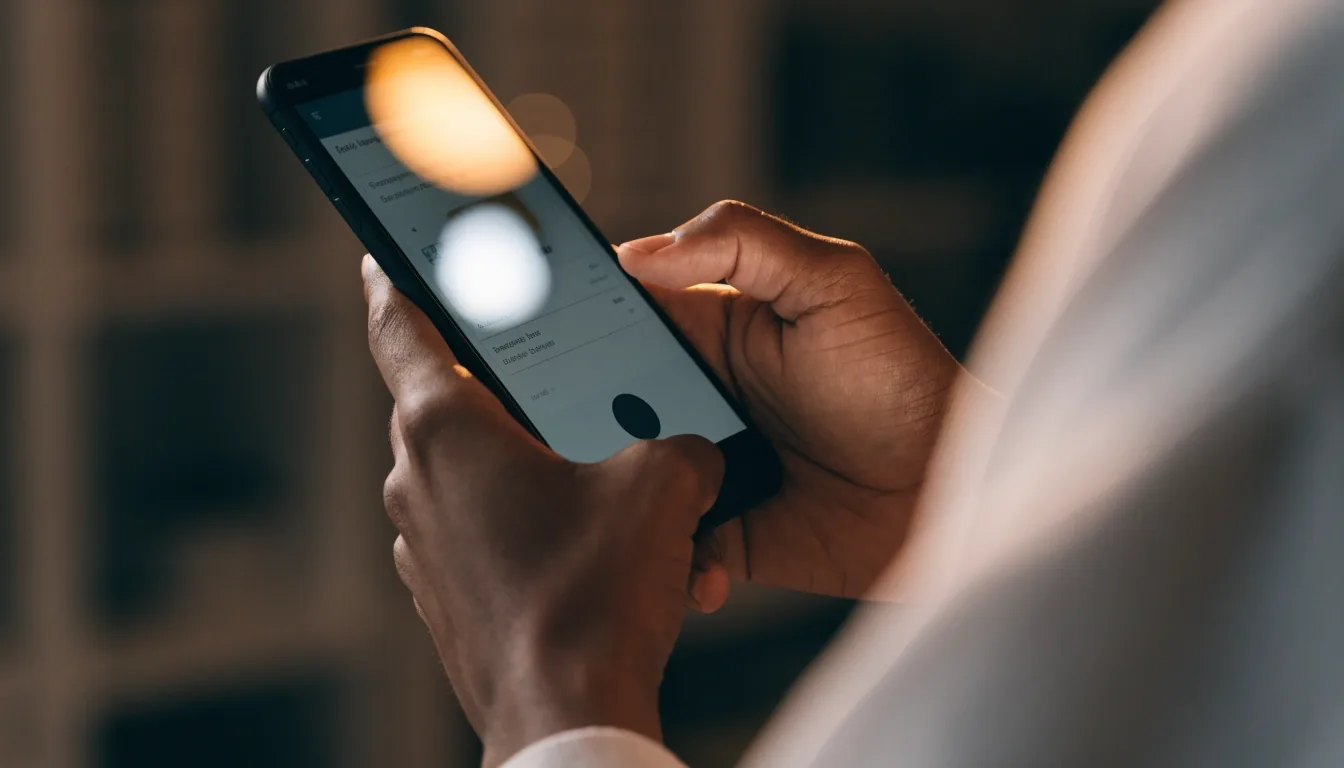
Yes — you can pay KAHRAMAA electricity and water bills from your phone. This guide walks the official app, the bill fields you are asked for, and the card and wallet methods the mobile payment page accepts, so a first payment goes through in one clean attempt.
One corridor, walked panel to panel. Start where you are.
Is the app the official channel?
The store listing presents it as the official app for Qatar General Electricity and Water Corporation, and it is KAHRAMAA’s mobile customer channel. Download it from that official store listing, which was updated in November 2026. Lookalike apps with similar names do exist — check the developer name before you install.
Once installed, sign in or continue as a guest and open the bill view first. That is where the fields you will be asked to type live, and seeing them before you owe money helps more than any guide.
Before you start
Inside the app
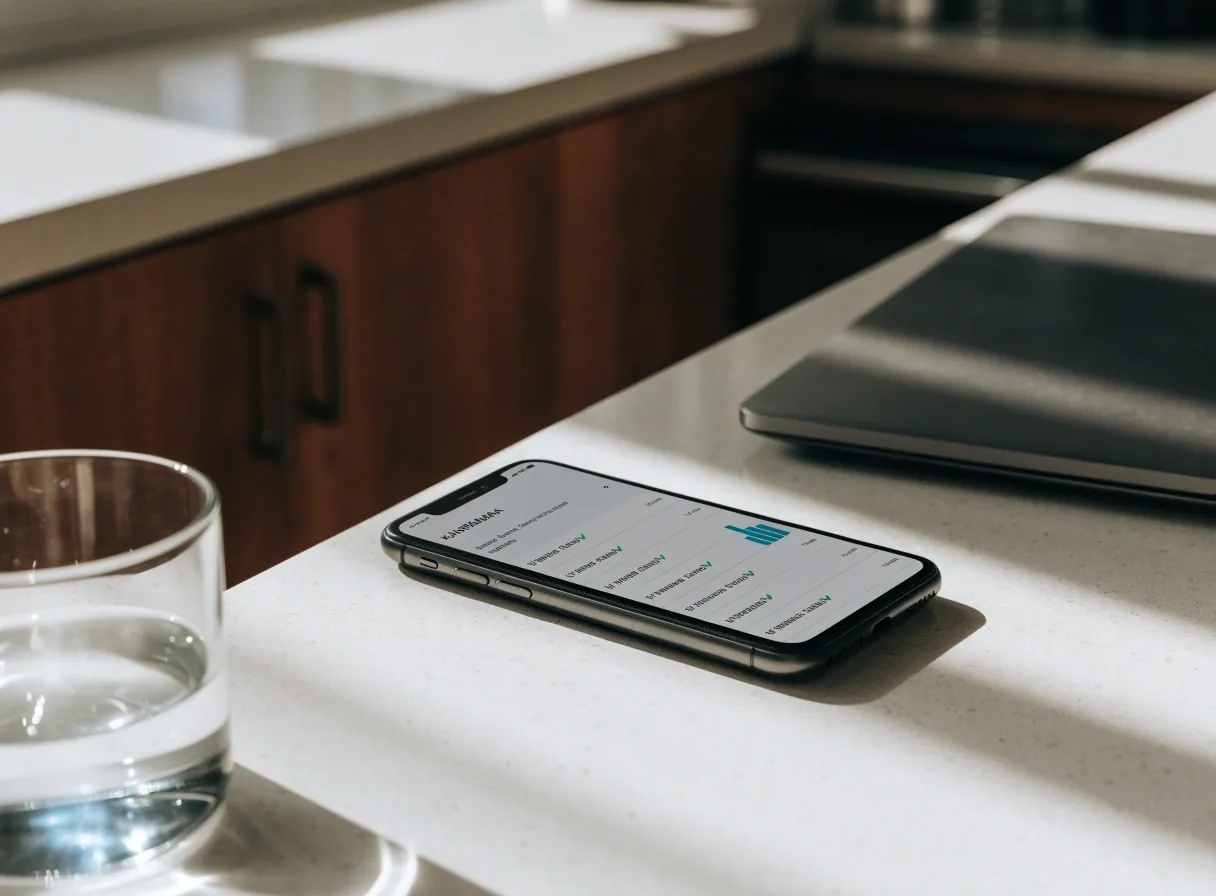
Inside the app you can view bill details and pay for electricity and water. The bill view is the room that matters most, so it is worth opening once when nothing is urgent.
Bill fields include the reference number, the electricity number, the amount, and the due date. Registered account access keeps your accounts handy for repeat visits; one-time flows still rely on you typing the correct bill numbers each time. Explore the e-services menu before you need to pay urgently.
What the bill view shows
Fields appear in this order on the summary screen. Line them up with your paper bill before you tap continue.
Payment methods on mobile
The KAHRAMAA mobile payment page shows bill payment for electricity and water. Availability can depend on your device and how your bank has set up your card.
The most common route. Keep your expiry and CVV handy and enable bank verification.
Ensure the card is enabled for online utility payments before you start the checkout.
Confirm the wallet is linked to a credit card, since both credit and debit appear as options.
Better for a straight debit of the exact amount, if the linked card is a debit one.
Have your preferred method ready with verification enabled. If one method fails, confirm card limits before retrying — one careful attempt beats three quick ones.
First payment
Three minutes of care protects your household budget. Rushing past the summary screen is how the wrong account ends up paid.
What to do if the bill is blankEnter or scan your numbers. If you keep accounts registered, pick the right flat or villa from the list instead.
Check the account name and the sector shown on the screen. These two lines catch most wrong-account errors before they happen.
Compare the outstanding amount and due date on the summary screen with the paper bill or the previous receipt.
Only when the numbers match your expectations. Then choose your method and complete the bank step.
Two methods, two things to check
Apple Pay users should confirm whether the wallet is linked to a credit or a debit card, since both appear as options on the payment page. The choice changes which account the money leaves, and it changes what appears on the receipt.
NAPS debit users should make sure the card is enabled for online utility payments. A card that works at a cash machine does not always work on a bill checkout until the bank has turned that channel on.
When nothing appears
A blank bill screen is almost always one of four small things. Walk them in this order and stop the moment the bill appears.
Troubleshooting helpAfter the payment
After payment, save the confirmation screen and the receipt number to your photos or files. Check the bill history in the app once the status refreshes.
Do not delete the receipt until the outstanding amount shows correctly on the next view. For shared housing, forward the receipt to whoever tracks household costs, so the record sits in the same place every month.
Device choice
Large commercial user accounts or bulk hotel records with multiple numbers can be easier to review on a larger screen. Phones suit single flats and villas with one or two accounts.
Use whichever device lets you verify names and amounts carefully. The bill numbers work the same on both — nothing about the payment changes because you moved to a browser.
Where to go next
The app is one channel of several. These pages cover the rest, plus the answers for when a payment does not go the way you expected.
The browser e-service, step by step, for when you would rather not install anything.
See online payment steps Channel 02Scan the code printed on the bill for a faster route into the same payment page.
Learn QR scanning Channel 03Answers for declined cards, blank bill screens, and payments that have not appeared yet.
Get troubleshooting helpShort answers
If your question is not here, the troubleshooting page covers the longer list. For anything billing-specific, the corporation’s own channels are the authority.
The mobile payment page lists Credit Card, NAPS Debit Card, Apple Pay with credit, and Apple Pay with debit for electricity and water bills. Your bank and your device determine which one you can complete.
The store listing presents it as the official app for Qatar General Electricity and Water Corporation, with e-services for viewing and paying bills. Check the developer name before installing if more than one listing shows a similar name.
No. One-time flows let you pay with correct bill numbers alone. A registered account simply keeps your electricity and water accounts handy so you tap a name instead of retyping numbers every month.
Do not retry immediately. Check whether the amount left your account, then confirm card limits and that the card is enabled for online utility payments. If the amount left but the bill still shows unpaid, keep the receipt and contact the corporation with it in hand.
Still stuck on a payment?
If the app declines your card, shows the wrong account, or refuses to load the bill, we can walk the steps with you. Have your reference number and the error text you saw ready, and reach us during working hours.
Before you contact us
We reply during working hours. This is an information guide, not a payment channel — payments still go through the official KAHRAMAA services.