QR code bill scanning
Tired of typing
long numbers?
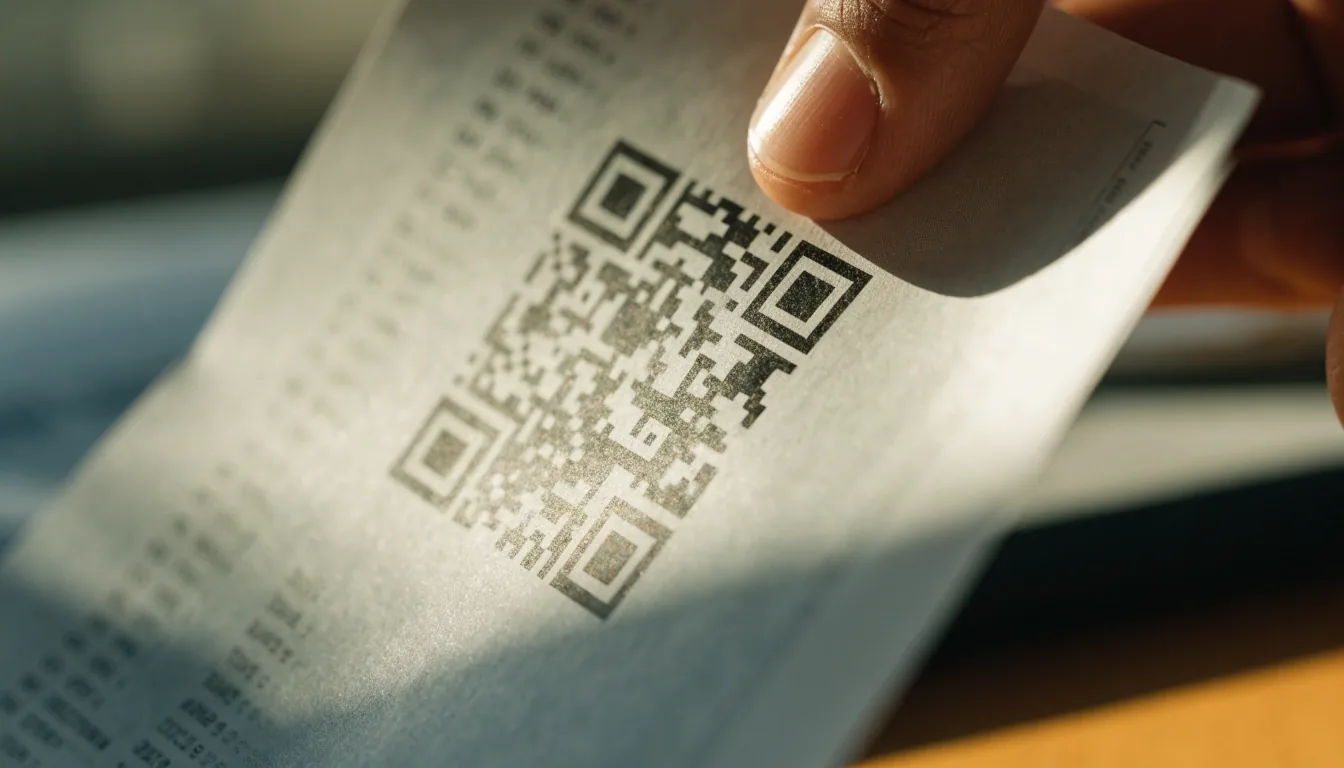
QR code bill scanning opens the right KAHRAMAA account in the mobile app without typing the full numbers by hand. Here is where the code sits on the bill, how the scan-and-review flow works, and what to do when a scan fails.
Chapter 01 — What it does
What scanning actually does
A 2026 Qatar utility guide notes the mobile app can use a QR code printed on the bill. The code carries the account identifiers, so the app opens the matching balance for review and payment. It is presented as an alternative to manual number entry.
You still confirm name, amount, and due date before you pay. Scanning does not remove that check — it removes the typing that comes before it. That is the whole point of the QR flow: fewer keystrokes, one less place for a wrong digit to land.
- Opens
- The KAHRAMAA account carried on the printed code
- Shows
- Outstanding amount and due date on the balance screen
- Keeps
- Name and sector check before any payment is sent
Chapter 02 — On the bill
Where to find the code
-
01
The square QR block
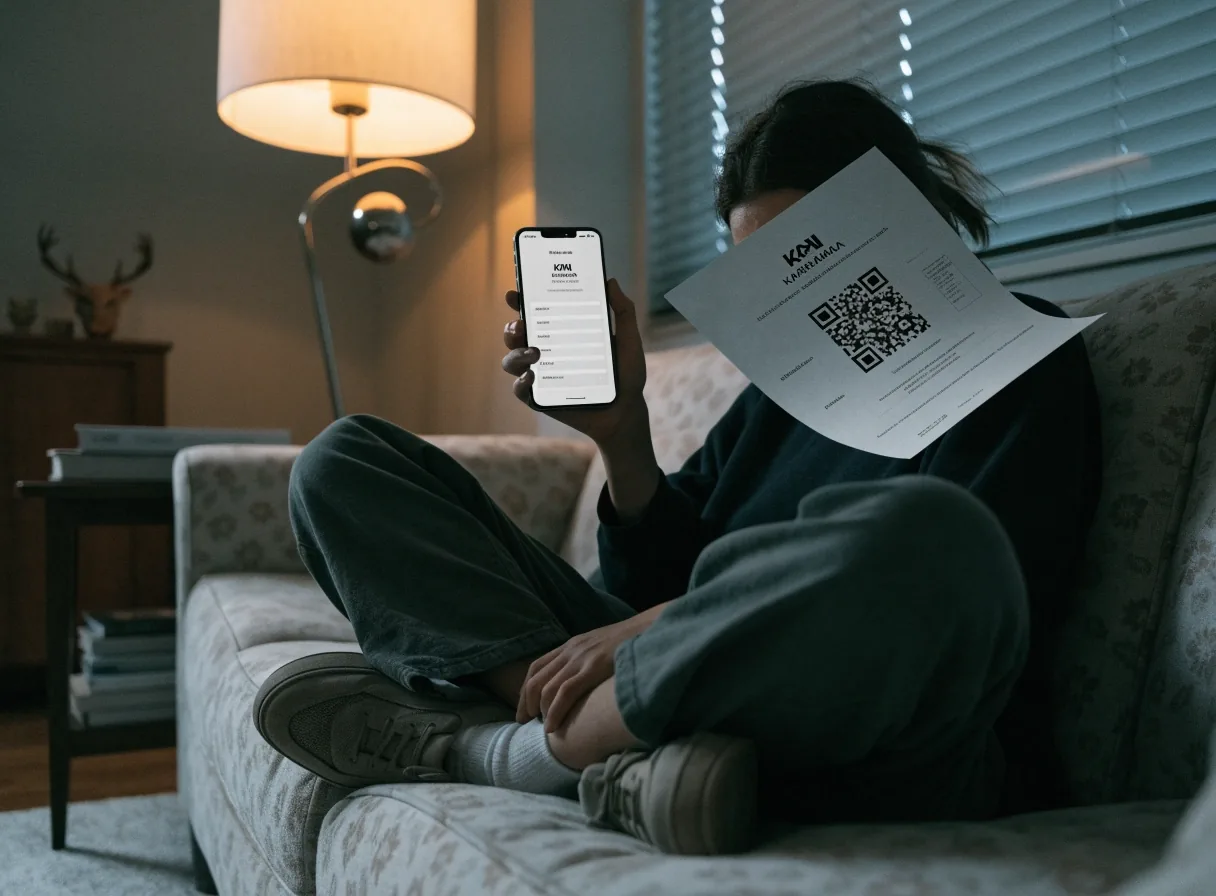
Look for the square QR block on the printed or PDF consumption bill, usually near the reference number, electricity number, and amount area.
-
02
Keep the bill flat
Keep the bill flat and fully visible. A creased or cropped code scans poorly — a folded corner cuts the pattern the camera reads.
-
03
On a phone PDF
Zoom so the code is sharp but fully inside the frame. When the code is on another screen, glare matters more than distance.
What the code stands next to
Reference number
Long, typed by hand
Electricity number
Carried by the scan
Amount area
Reviewed, not guessed
The code sits in the same zone of the bill as the identifiers it replaces. If you can find those numbers, the QR block is already nearby.
Chapter 03 — Why it matters
Why scanning helps
Long electricity and reference numbers invite typos. A single wrong digit sends the payment toward an account that is not yours, and it has to be reversed. Scanning removes that typing step and opens the correct customer account faster.
It is useful for tenants who pay a villa bill they did not set up, or for shop staff handling a commercial user account. Speed matters most when the due date is near — a scan takes a few seconds, where hand-entry of a sixteen-digit reference number can take a minute and a retry.
Tenant
You moved into a villa and the bill is in someone else's name — but you still have to pay it. The scan opens the right account on the first try.
Shop staff
You handle a commercial user account, not your own. Fewer digits typed means fewer cases to chase after the cycle closes.
Chapter 04 — Before you scan
Prepare the app first
Two minutes of setup turns a scan into a single pass. Skipping it is what turns a simple flow into three attempts and a support call.
-
Step 01
Install the official app
Install the official KAHRAMAA app and allow camera access for scanning. A denied camera permission means the scan option will not fire at all.
-
Step 02
Sign in before you scan
If you use registered account access, sign in before you scan so history saves correctly to your account rather than as a guest session.
-
Step 03
Have payment ready
Have your payment method ready, whether Credit Card, NAPS Debit Card, or Apple Pay options shown on the mobile payment page.
-
Step 04
One clean pass
Or at least, the app is prepared for one — the scan, the review, and the payment sit in a single session without a trip back to the bill.
Chapter 05 — The flow
Scan and review in order
-
01
Open the scan option
Point the camera at the QR code on the bill and hold steady until the account loads on screen. Give it a couple of seconds rather than moving closer.
-
02
Check name and sector
Check that the displayed name and sector type match your premises. This is the fastest way to catch a bill that belongs to another unit.
-
03
Review amount and due date
Review outstanding amount and due date on the balance screen. Both need to match the bill in your hand before you move on.
-
04
Continue and save the receipt
Continue to payment only after that review, then save the paid bill receipt. The receipt is the only proof you will have if something goes wrong later.
Chapter 06 — When it will not read
Lighting and focus fixes
Most failed scans come from glare, shadow, or motion — not from the code itself. The four fixes below are what actually changes the outcome.
The one rule
One calm retry usually works better than several rushed ones. Slow the hand, not the code.
Move to even light
A window on one side of the code kills the pattern. Turn off the lamp directly over the bill and stand where the light is flat.
Flatten the paper
Hold the page flat at the crease. A curl pulls the QR squares out of shape and the read no longer lines up.
Hold still a few seconds
Hold the phone still a few seconds. Tiny hand drift is enough for the camera to lose the anchor points it locks onto.
Lower the other screen
If the PDF is on another screen, lower brightness slightly to reduce glare. Clean the camera lens if the picture looks hazy.
Chapter 07 — The manual route
When scanning is not possible
Older printouts, damaged paper, or low-ink copies may not scan. That is not the end of the road — the same payment is reachable with the numbers typed in by hand.
Enter electricity or reference numbers manually in the app or browser e-service. Copy digits in small groups and recheck the confirmation screen. The account you open manually should match the one the QR would have opened — same name, same sector, same balance.
A QR reader on a separate app will not complete the payment — the QR carried by the bill is designed for the KAHRAMAA app's own review screen. If the app cannot read the code, do not hunt for a third-party scanner; fall back to typing.
Scan vs. type
- Where the number comes from Scan: printed on the code. Typed: read off the bill, one digit at a time.
- Typical time Scan: a few seconds. Typed: a minute or more for a long reference.
- Main risk Scan: glare or motion. Typed: a wrong digit that lands on another account.
- Same review Both routes open the same balance screen. Neither skips the confirm step.
Chapter 08 — Before you press pay
Balance review before payment
The QR flow is tied to reviewing balance and paying from the app. That review step is the safeguard — it is what stops a payment from being routed to the wrong premises by a code read too fast.
Confirm the bill
Expected, not old
Confirm the amount is the expected due bill, not an old paid bill or a different premises. A paid-in-full prior cycle looks identical on a brief glance.
Check both lines
Water and electricity
Check water and electricity lines where both appear. Together they explain the total — and a mismatch here is the clearest early signal something is off.
Stop if unsure
Verify before paying
If anything looks unfamiliar, stop and verify numbers before paying. A cancelled payment is a five-minute problem; a wrong-account payment is a week.
Chapter 09 — After the scan
Receipts after a scan payment
Save the in-app confirmation with receipt number, date, and amount. The status may take time to change from due to paid, especially near peak hours — a screen that still reads due straight after payment is usually a delay, not a failure.
Keep the scanned bill as well until the next cycle. For shared homes in Doha or Lusail, share the receipt with housemates the same day — the receipt is what closes the argument about who paid.
Chapter 10 — The routine
Scanning as a monthly habit
Once scanning works for you, it becomes a quick monthly routine: open the app, scan the current bill, review the balance, pay, save the receipt. Five steps, one sitting, no backlog.
You can still use QNB or Ooredoo self-service machines, or browser payment, when you prefer. The numbers stay the same across channels — the account on the bill does not change because the screen did.
Chapter 11 — When it does not work
What went wrong?
Before calling support, the four items below cover the reason behind almost every failed scan on this page. Each one is a thing you can check in under a minute.
-
Code creased or cropped
Flatten the page; the QR squares lose their shape on a fold and the read stops matching.
-
Glare across the block
Move away from the window glow or lower the brightness on the screen showing the PDF.
-
Camera permission off
Check the app's camera permission in your phone settings; the scan option cannot fire without it.
-
Faded or low-ink print
An old printout may not scan at all — type the electricity or reference number instead.
Keep reading
Where to go next
Tariffs explained
What the consumption lines mean and how the monthly amount is built.
Mobile app and mobile payment
Install, sign in, and set up the cards the QR flow will use.
Self-service machines
Paying at QNB and Ooredoo terminals when the phone is not the answer.
FAQs and troubleshooting
The common problems from this page, plus the ones that did not fit here.
Office
Building 18, Al Kinana Street, Zone 37, Al Sadd, Doha, Qatar
Same-day support
Sunday–Thursday, 8:00 AM – 5:00 PM · +974 4490 8735