Self-service machines · Qatar
Where do bill machines fit your routine?
Paying a KAHRAMAA consumption bill at a QNB or Ooredoo self-service machine is an in-person routine, not a workaround. This page walks the kiosk step by step: what to bring, how the screen works, and when a machine beats a browser for you.
Why machines still matter
A terminal, not a workaround
Not everyone wants to pay from a phone. Some residents prefer a cash-adjacent routine, a printed receipt handed over on the spot, and someone nearby if a screen is unclear. Self-service machines serve exactly those needs, sitting inside Qatar's broader utility-payment infrastructure.
They are part of the official consumption-bill channels that KAHRAMAA itself names, alongside bank counters and the online account view. That matters: a payment routed through a recognised channel lands where the utility expects it. An unofficial intermediary that asks for a fee or a full card copy does not.
- Best for
- One-off in-person payments, residents without stable internet, anyone who wants the paper slip in hand immediately.
- Not the best for
- Anyone who needs the payment history stored in one account, or a QR-scan shortcut fired from the bill itself. Those belong to the app and browser channels.
QNB machines for KAHRAMAA bills
The bank kiosk route
Channel reference
October 2026
The page of KAHRAMAA's own FAQ noting QNB self-service machines among consumption-bill payment methods was last updated in October 2026.
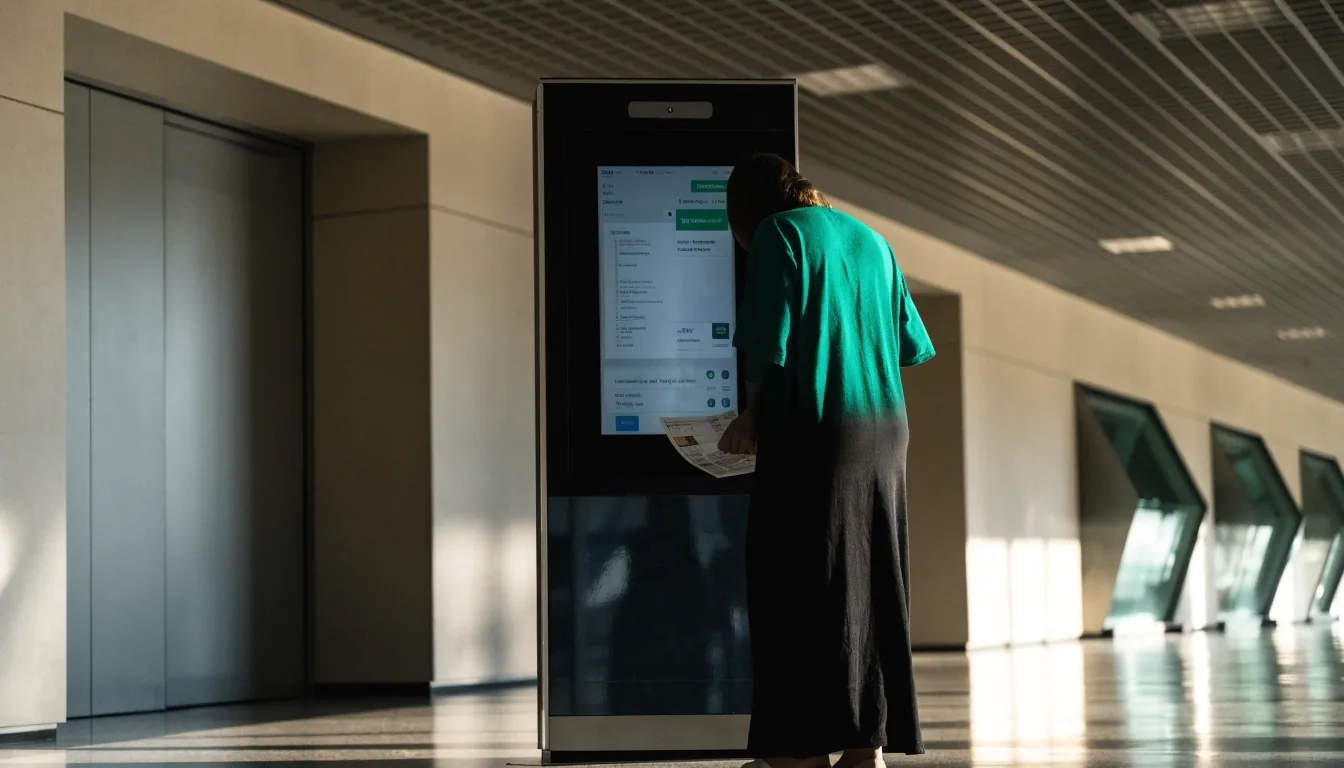
KAHRAMAA's FAQs list QNB self-service machines as a payment option for consumption bills. You select the utility-payment path on the kiosk, enter the required bill numbers, review the account summary on screen before anything is charged, confirm, then complete payment and take the printed receipt.
-
01
Select the utility-payment path
On the kiosk menu, choose KAHRAMAA or utility bills. Telecom top-up and other service paths look similar on the screen, so take a second before you tap.
-
02
Enter bill numbers
Type your electricity number and reference number carefully. A photo of a previous bill on your phone is the fastest way to be sure of the exact digits.
-
03
Review the account summary
Match the displayed name and sector type to your home or shop, and compare the amount with the figure on your bill. Only then move to the payment step.
-
04
Pay and take the receipt
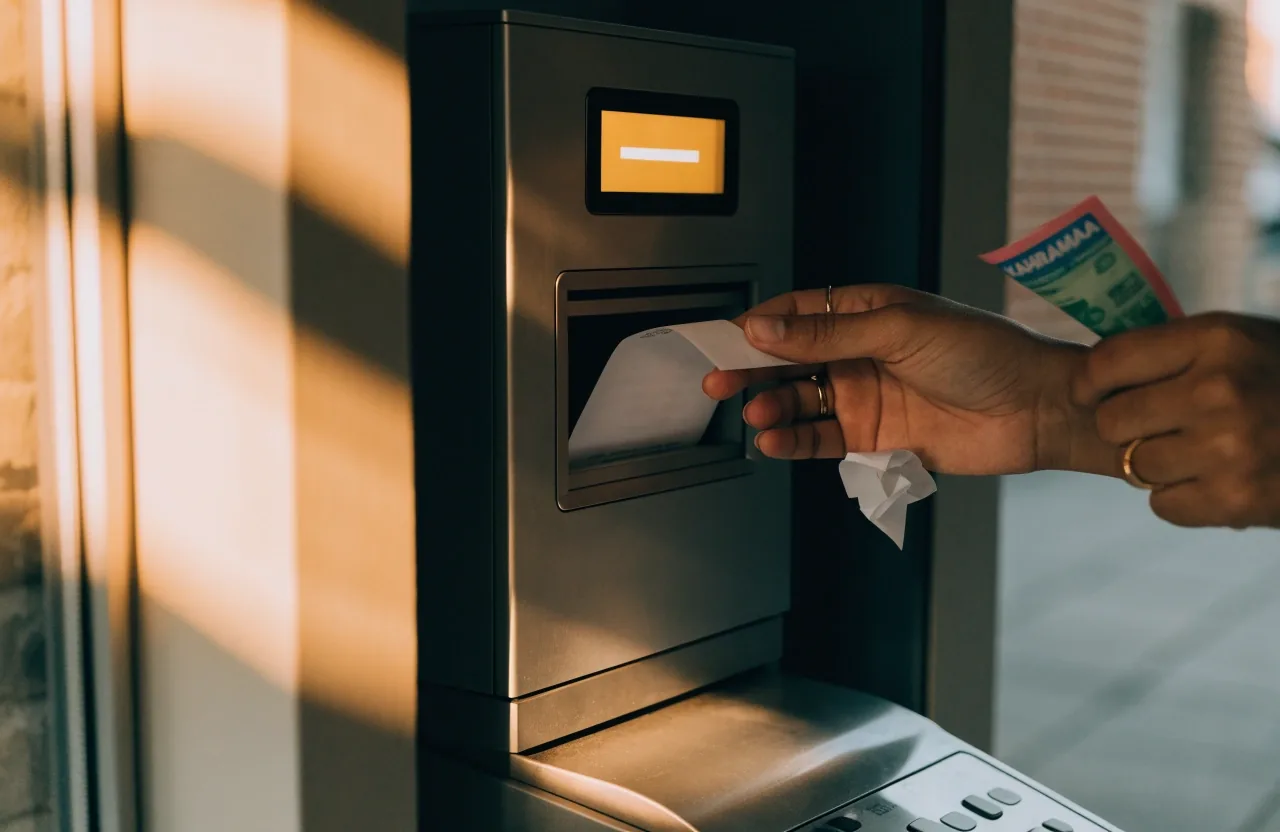
Complete the payment with the card or funds the machine accepts, wait for confirmation, take the printed slip, and photograph it as a backup.
Ooredoo machines · official channel set
The same recognised path, in another machine
KAHRAMAA's FAQs list Ooredoo self-service machines among the bill payment options, grouped with the other official payment methods. The steps are close to the QNB route: choose bills rather than a mobile top-up, enter the required numbers, verify the name and amount on screen, then pay and keep the slip. Regulars who already use Ooredoo kiosks for telecom top-ups often find this path familiar from the first tap.
That grouping is the point. Machines sit alongside Ooredoo self-service machines and bank channels as options named in official guidance, which tells you the payment is routed through an accepted path rather than through an unknown intermediary.
Where the machine sits
- Government channel
- The utility itself names the machine among consumption-bill payment methods.
- Named in the same FAQ
- Sits beside Ooredoo self-service machines and bank channels, not on a separate list.
- What it is not
- Not a workaround. Not a reseller. Not a channel that asks for an extra handling fee.
What to carry to the machine
The short list before you queue
- Your numbers Your electricity number and your reference number, written clearly. If a screen asks for exact digits, a photo of your previous bill saves a retype.
- The amount The outstanding figure you noted from your last bill view, so you can compare the amount the kiosk shows before you confirm.
- Payment A payment card, or the funds the machine accepts. Machines differ in what they take, so check at the kiosk before you commit to a queue.
- For tenants Confirm the premises you are paying for. Paying the wrong electricity number at a kiosk is harder to unwind quickly than a wrong tap on a phone.
Step order at the kiosk
Slow on the digits, fast when it counts
A kiosk rewards a careful first minute. The sequence below is what actually happens on the screen, and the confirm step is the last chance to catch a mistyped digit before money moves.
- 1 Choose utility bills at the start, not telecom or another service.
- 2 Enter the numbers slowly and read each digit back on the confirmation screen.
- 3 Match the name and sector shown on screen to your home or shop.
- 4 Confirm payment only after points 2 and 3 look right.
- 5 Take the printed receipt and photograph it before you pocket it.
Receipts and proof
The slip is your evidence
A machine receipt works like an online paid bill receipt. It should show the date, the amount, and the account identifiers for the premises you paid. Store it until your next bill view shows the correct balance.
Two practical habits pay off here. If you pay near the due date, allow time for the system to reflect the payment before you worry about it. And where the print is on thermal paper, photograph the slip on the spot as a backup for the day the black fades to blank.
Machines versus app or browser
Choose by comfort, not by speed
Both routes need the same core numbers. What differs is where you stand, what you walk away with, and what happens when something looks off.
| Consideration | Self-service machine | App or browser |
|---|---|---|
| What you need | Electricity and reference number, plus a card or funds the machine takes. | The same two numbers. A stable connection and a saved login help more than anything else. |
| What you leave with | A printed receipt, in hand, before you leave the kiosk. | A digital confirmation stored in the account, retrievable later. |
| Where help is | A person at the branch or the service point, nearby if a screen confuses you. | Support by phone or by message, but never standing beside you. |
| Best for | One-off in-person payments, residents without stable internet, anyone who wants the paper trail immediately. | Monthly payers who want their history and QR scanning in one place. |
Finding a machine near you
Where the kiosks actually are
QNB machines are commonly found at branches, malls, and high-traffic areas across Doha, Lusail, Al Rayyan, and Al Wakrah. Ooredoo machines appear at service points and retail locations. Opening hours follow the host location, so an evening mall run can work when the offices are closed — useful if your only free hour is after work. Check that a machine is available before carrying a large amount of cash to a location you have not visited before.
If a kiosk is out of service, the same bill is payable through the online account view or the mobile app, so a wasted trip is rarely a dead end. Where you would rather ask before travelling, our contact page carries the office hours and the address for the Al Sadd location.
If the machine cannot find your bill
When the screen finds nothing
A kiosk that finds no bill is usually a digit problem, not a payment problem. Re-enter your numbers without spaces, confirm you picked the correct bill type, and check whether you are looking at a due bill or at one you have already settled. The order matters: type, then digits, then account.
If the screen still shows nothing, keep your numbers and open the official online view to see the same account there. For a look at how that route reports the balance back, see our online payment steps.
Do not keep retrying with guessed digits. Note any error code the screen shows, so a member of staff or the utility support line can start from it. If it comes down to how your account is presented or held, the QID bill access page explains the identity side, and the FAQs and troubleshooting page covers the common cases with the utility.
Common questions about machine payments
The four things people ask at the kiosk
Can I pay a KAHRAMAA bill at any QNB machine?
The QNB self-service machines listed among KAHRAMAA's consumption-bill payment options are the ones to look for. Machines at branches and malls that serve other services may not carry the utility path, so check the on-screen menu before you start a queue.
How fast does the balance update after I pay?
Allow time for the system to reflect the payment, especially if you paid near the due date. Keep the printed receipt until the next bill view shows the correct balance; that slip is what you refer back to if anything looks off.
What if my receipt print is unreadable?
Thermal paper fades. Photograph the slip before you pocket it, note the date and amount on your phone if the print is thin, and keep the photo with your saved bill numbers. That photo plus the payment date is usually enough to trace the payment later.
Is a machine cheaper than paying online?
The machine is a channel, not a price. What differs is where you stand, what you leave with, and who is nearby if the screen is confusing. Choose on comfort and on what you want in hand, not on a speed claim either way.
Still have a bill question?
Bring the numbers, we will help
If a machine will not take your bill and the online view shows the same account, it helps to bring the electricity number, the reference number, and any error code to a real person. Our office in Al Sadd keeps the hours below and answers on the phone.
- Phone
- +974 4490 8735
- [email protected]
- Office
- Building 18, Al Kinana Street, Zone 37, Al Sadd, Doha, Qatar
- Hours
- Sunday to Thursday, 8:00 AM – 5:00 PM